User Configuration
यह सामग्री अभी हिन्दी में उपलब्ध नहीं है।
User Configuration is an administrative screen. Changes here affect every user, so read the notes before you save.
Overview
Section titled “Overview”This screen is restricted to administrators. Changes take effect for other users the next time they sign in, or immediately if they reload the application.
Prerequisites
Section titled “Prerequisites”Before you begin
- You are signed in with an administrator role
- You have told affected users that a change is coming
Opening the screen
Section titled “Opening the screen”- Administration
- User Configuration
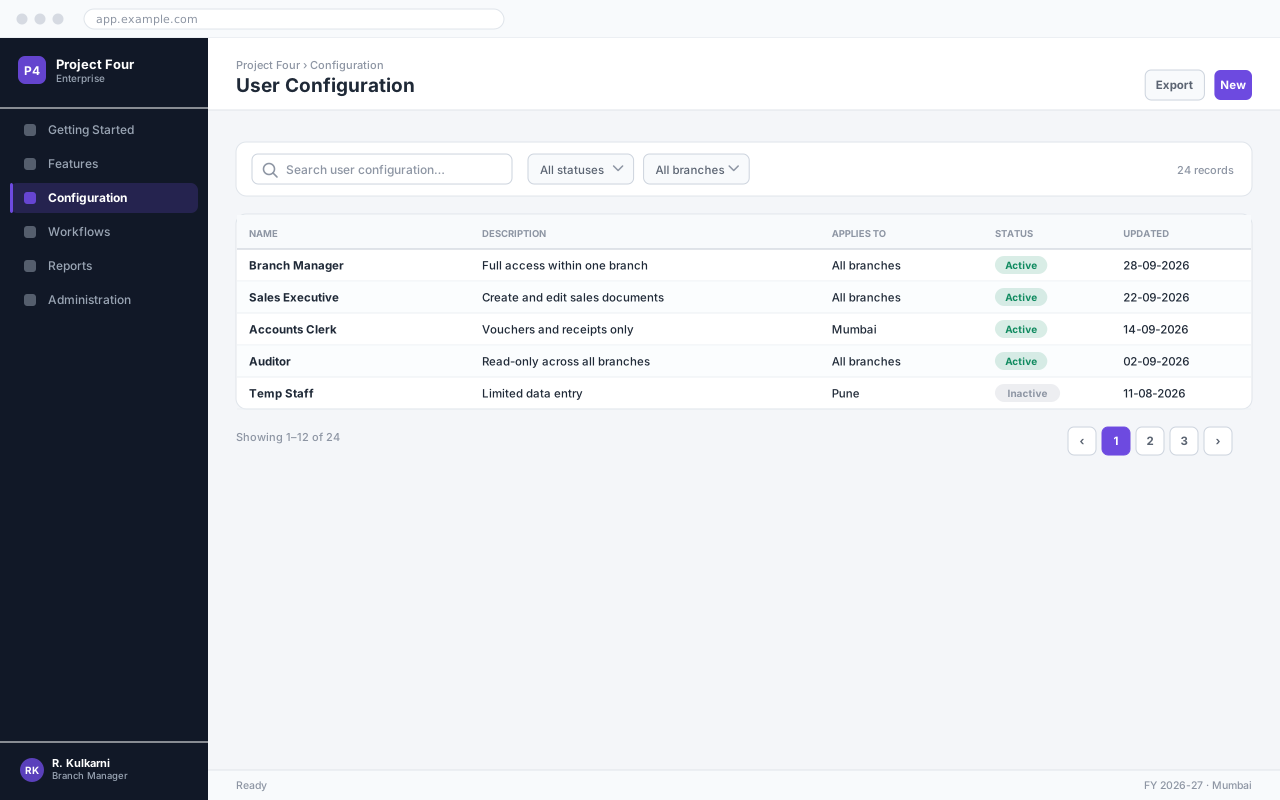
Procedure
Section titled “Procedure”Open the configuration screen
Use the navigation path above. Administrator rights are required.
Make the change
Edit the settings you need. Changes are validated as you type and the screen tells you what else they affect.
Save and verify
Click Save, then sign in as a normal user (or ask a colleague to) and confirm the change behaves as intended before telling the team.
अपेक्षित परिणाम
The setting is saved and an entry is written to the audit log recording who changed what, and when.
Field reference
Section titled “Field reference”| Field | Type | Required | Default | Description |
|---|---|---|---|---|
| Name | Text | Yes | — | Display name for this user Configuration entry. |
| Description | Text area | No | — | What this configuration is for. Shown to other administrators. |
| Applies To | Dropdown | Yes | All branches | Scope of the setting. |
| Status | Dropdown | No | Active | Inactive entries are retained for audit but no longer applied. |
User Configuration fields
Important notes
Section titled “Important notes”Common problems
Section titled “Common problems”The Save button is disabled
A required field is empty or invalid. Fields in error are outlined in red with the reason underneath — scroll up, the first error is usually in the header.
You do not have permission to perform this action
Your role is missing the relevant permission for this screen. Ask an administrator to check it against Roles & Permissions.
Frequently asked questions
Section titled “Frequently asked questions”Who can perform this task?
Any user whose role grants access to this screen. Roles and Permissions lists exactly which permission controls it.
Is the change audited?
Yes. Every create, edit and cancel is recorded with the user, timestamp and the before-and-after values.