Users
हा आशय अद्याप मराठीत उपलब्ध नाही.
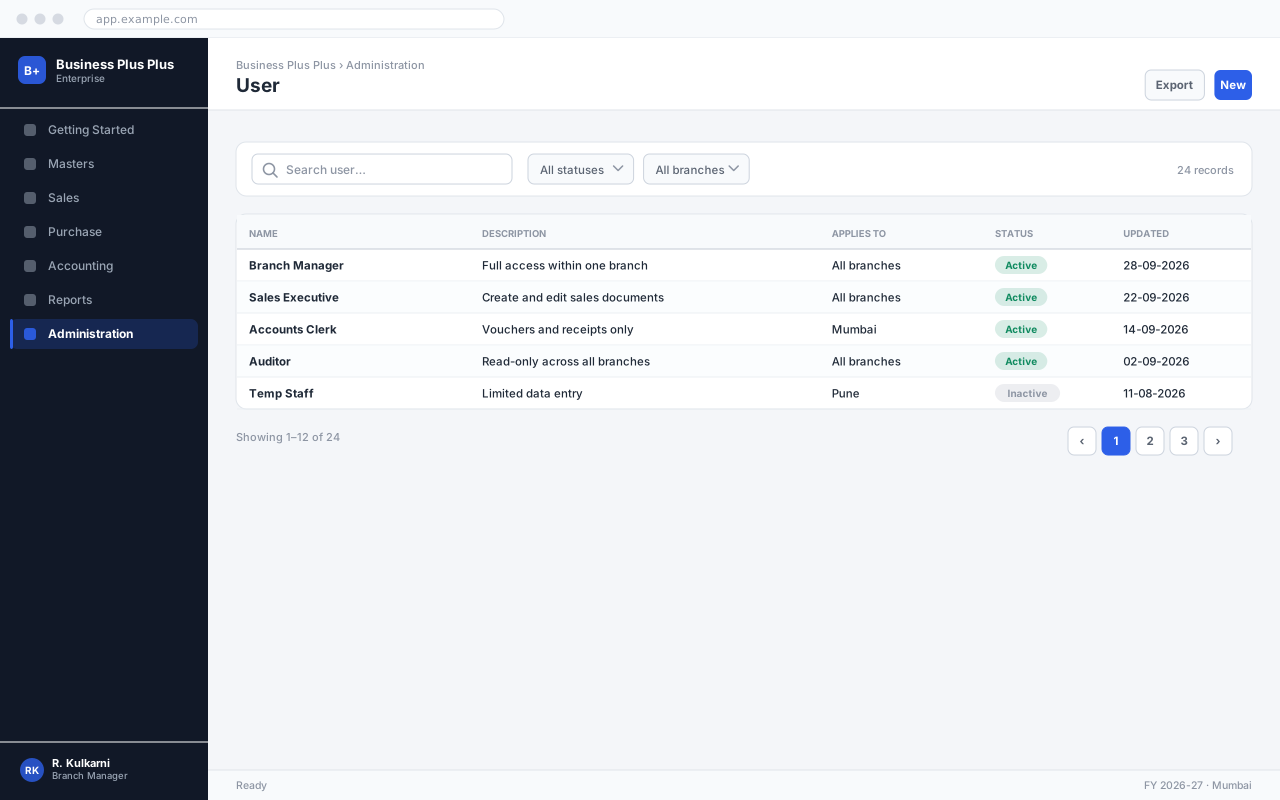
User accounts control who can sign in. Every document in the system carries the user who created it, so accounts must belong to individuals.
Overview
Section titled “Overview”This screen is restricted to administrators. Changes take effect for other users the next time they sign in, or immediately if they reload the application.
Prerequisites
Section titled “Prerequisites”Before you begin
- You are signed in with an administrator role
- You have told affected users that a change is coming
Opening the screen
Section titled “Opening the screen”- Administration
- Security
- Users
Procedure
Section titled “Procedure”Open the configuration screen
Use the navigation path above. Administrator rights are required.
Make the change
Edit the settings you need. Changes are validated as you type and the screen tells you what else they affect.
Save and verify
Click Save, then sign in as a normal user (or ask a colleague to) and confirm the change behaves as intended before telling the team.
अपेक्षित परिणाम
The setting is saved and an entry is written to the audit log recording who changed what, and when.
Field reference
Section titled “Field reference”| Field | Type | Required | Default | Description | Notes |
|---|---|---|---|---|---|
| User ID | Text | Yes | — | Sign-in name. Cannot be changed once created. | Use a consistent convention, e.g. first initial plus surname. |
| Full Name | Text | Yes | — | Shown in audit trails and document footers. | |
Email | Yes | — | Used for password resets and scheduled reports. | ||
| Role | Dropdown | Yes | — | Determines what the user can see and do. | A user has exactly one role. |
| Branches | Multi-select | Yes | — | Branches this user may sign in to. | |
| Approval Limit | Amount | No | 0 | Maximum document value this user may approve. | Zero means the user cannot approve anything. |
| Status | Dropdown | No | Active | Inactive users cannot sign in but their history is retained. |
User fields
Important notes
Section titled “Important notes”Common problems
Section titled “Common problems”The Save button is disabled
A required field is empty or invalid. Fields in error are outlined in red with the reason underneath — scroll up, the first error is usually in the header.
You do not have permission to perform this action
Your role is missing the relevant permission for this screen. Ask an administrator to check it against Roles & Permissions.
Frequently asked questions
Section titled “Frequently asked questions”How do I reset a password?
Open the user and click Reset Password. They receive an email with a single-use link and must set a new password on first sign-in.
Can a user have two roles?
No. If someone genuinely needs two sets of permissions, create a role that combines them — that way the permission set is explicit and auditable.
What happens to a deactivated user's documents?
Nothing. They stay exactly as they are, still attributed to that user. Only the ability to sign in is removed.