Price List
A price list is a dated set of rates. Price lists are what let you raise a correct invoice without anyone having to remember what a customer is meant to pay.
Overview
Section titled “Overview”Rates are resolved at the moment a line is added to a document, using the document date — not today’s date. That is why reprinting a six-month-old invoice still shows the rate that applied then.
When several price lists could apply, the most specific wins: a customer-specific list beats a group list, which beats the company default.
Prerequisites
Section titled “Prerequisites”Before you begin
- You have the Create permission for Price List
- The classification groups you need already exist
Opening the screen
Section titled “Opening the screen”- Masters
- Pricing
- Price List
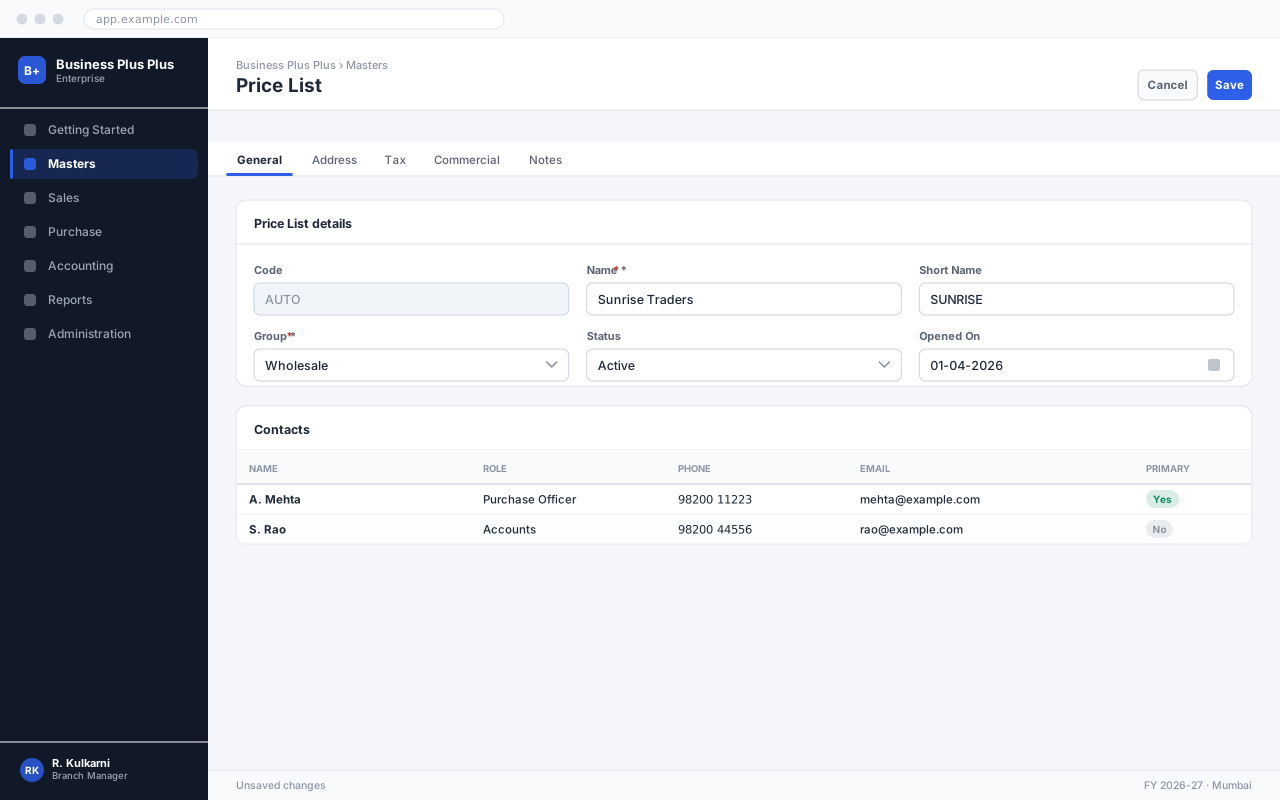

Creating a price List
Section titled “Creating a price List”Open the Price List list
The list shows every price List record you have access to, newest first. Use the search box to check whether the record already exists before creating a duplicate.
Start a new record
Click New. Price List opens with the code field already filled from the numbering series.
Complete the required fields
Fill every field marked with a red asterisk. The Save button stays disabled until all of them are valid.
Save the record
Click Save. The record becomes available to transactions immediately — there is no separate approval step.
Expected result
The record is saved, a code is allocated, and the price List immediately appears in transaction lookups.
Field reference
Section titled “Field reference”| Field | Type | Required | Default | Description | Notes |
|---|---|---|---|---|---|
| Price List Code | Auto | Read-only | — | Allocated on save. | |
| Name | Text | Yes | — | Descriptive name, e.g. "Wholesale 2026-27". | |
| Applies To | Dropdown | Yes | All customers | Company default, a customer group, or a single customer. | |
| Valid From | Date | Yes | — | First date on which these rates apply. | |
| Valid To | Date | No | — | Last date. Leave blank for open-ended. | Overlapping windows for the same scope are rejected. |
| Currency | Dropdown | Yes | Company currency | Rates are held in this currency. | |
| Rates | Grid | Yes | — | One row per product, with rate and optional minimum quantity. | |
| Tax Inclusive | Checkbox | No | Off | When on, the rates already include tax and the document works backwards from them. | |
| Status | Dropdown | No | Active | Inactive lists are ignored during rate resolution. |
Price List fields
Important notes
Section titled “Important notes”Common problems
Section titled “Common problems”The Save button is disabled
A required field is empty or invalid. Fields in error are outlined in red with the reason underneath — scroll up, the first error is usually in the header.
You do not have permission to perform this action
Your role is missing the relevant permission for this screen. Ask an administrator to check it against Roles & Permissions.
Frequently asked questions
Section titled “Frequently asked questions”Why is the rate on my order zero?
No price list covers that product for that customer on that date. Check the validity window first — an expired price list is the usual cause.
Which price list wins when two apply?
The most specific: customer-specific, then customer group, then company default. Within the same specificity, overlapping date ranges are not allowed, so there is never a tie.
Can I give one customer a discount without a whole price list?
Yes — set a discount percentage on the Customer Master, which applies on top of the resolved rate. Use a separate price list only when the actual rates differ.