Cash sale
- Payment collected immediately
- No outstanding to track
- No credit check
Documentation for
Business Plus PlusCloud ERP for distribution and trading businessesv3.0FinGrowMicrofinance, loans and deposit managementv2.0SuperMandiAgri-market vendor, order and delivery platformv1.4Project FourConfigurable business workflow applicationv1.0Browse all 4 productsProduct Documentation · Northwind Software
Every component below is available in any .md or .mdx page with no import statement — they are registered once in astro.config.ts and auto-imported. Each section shows the component rendered, then the MDX that produced it.
The implementations live in src/components/docs/. They are deliberately small and self-contained so you can read one, understand it, and adapt it.
Five severities, one implementation. Use the severity that matches the consequence of ignoring the text — not the one that gets attention.
<Note>General information.</Note><Tip>A shortcut or best practice.</Tip><Important>Must know to get the right result.</Important><Warning>Awkward to undo.</Warning><Danger>Destructive or irreversible.</Danger>A custom title replaces the default heading, and title="" removes the heading row:
<Callout type="warning" title="Check the financial year first">Posting into a closed period needs an administrator.</Callout>
<Callout type="note" title="">A callout with no heading.</Callout><Steps> numbers its children automatically, so inserting a step never means renumbering the rest.
Navigate to the screen and click New.
Fields marked with a red asterisk are mandatory.
Click Save. A number is allocated.
<Steps> <Step title="Open the screen">Navigate to the screen and click **New**.</Step> <Step title="Complete the required fields"> Fields marked with a red asterisk are mandatory. </Step> <Step title="Save" note="takes a moment">Click **Save**.</Step></Steps>A standalone step with an explicit number works too:
Click Save to create the Sales Order.
<Step number="3" title="Save the Sales Order">Click **Save** to create the Sales Order.</Step>Before you begin
Expected result
The customer is saved with a code such as CUS/00318 and appears in sales lookups.
<Procedure title="Create a customer" role="Data Administrator" time="4 min"> <Prerequisites items={['You have the Create permission']} /> <Steps> <Step title="Open the Customer screen">Go to **Masters → Parties → Customer**.</Step> </Steps> <ExpectedResult>The customer is saved with a code such as `CUS/00318`.</ExpectedResult></Procedure><NavPath path="Sales > Transactions > Sales Order" /><NavPath path={['Masters', 'Parties', 'Customer']} label="Go to" />Ticks persist in the reader’s browser, scoped to the page and the id.
Trainee checklist
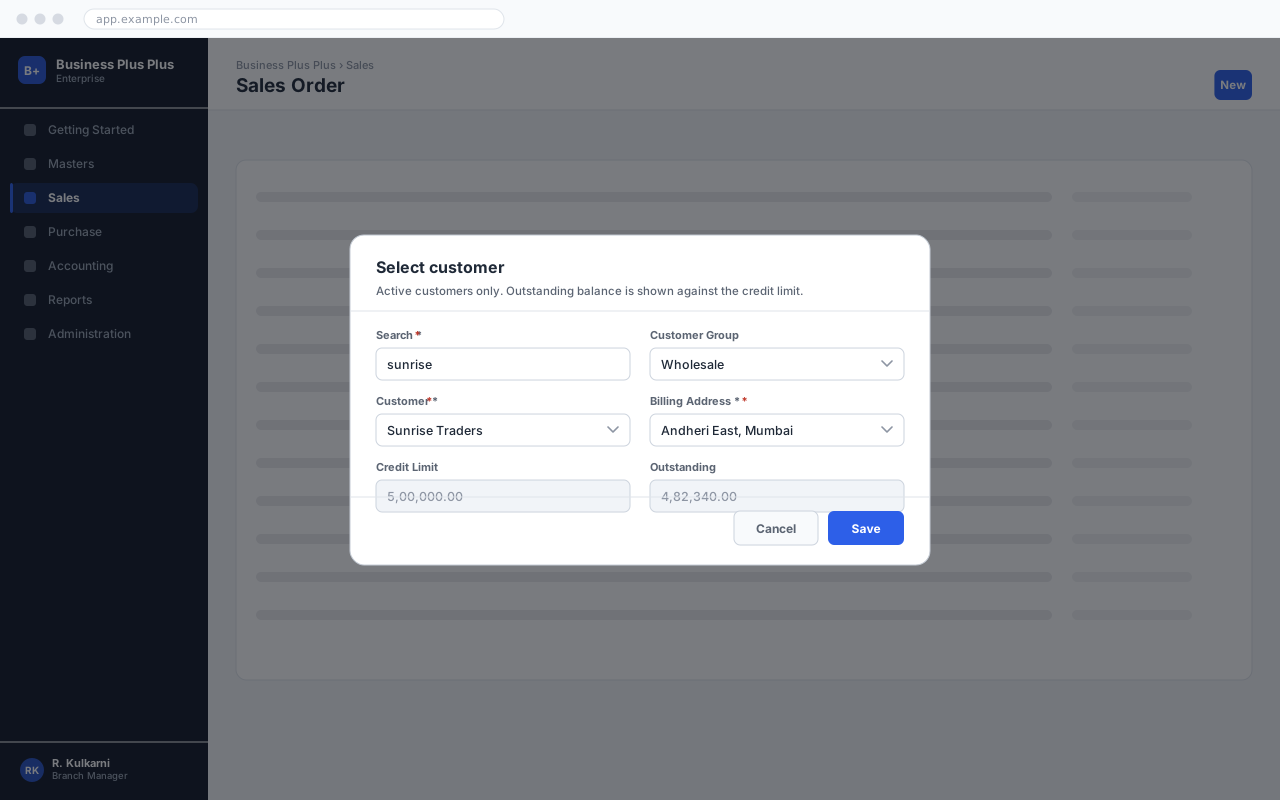
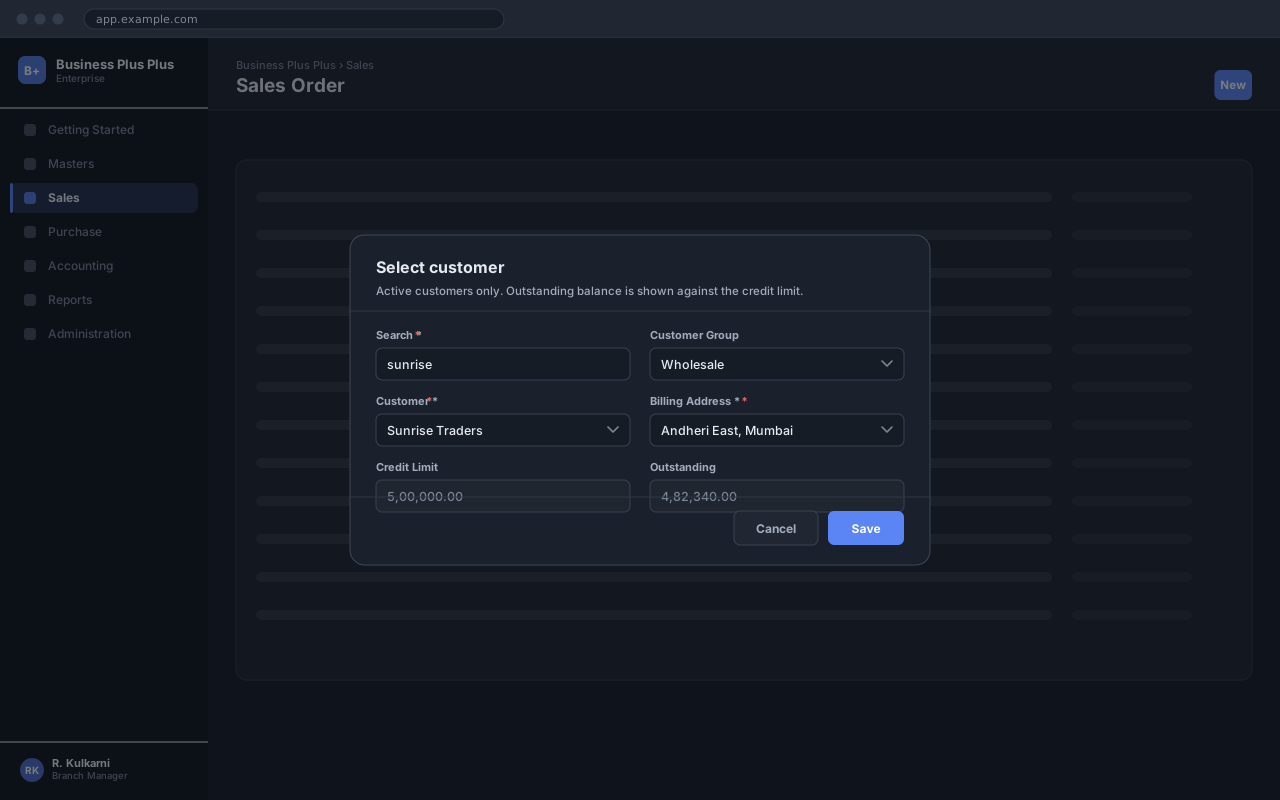
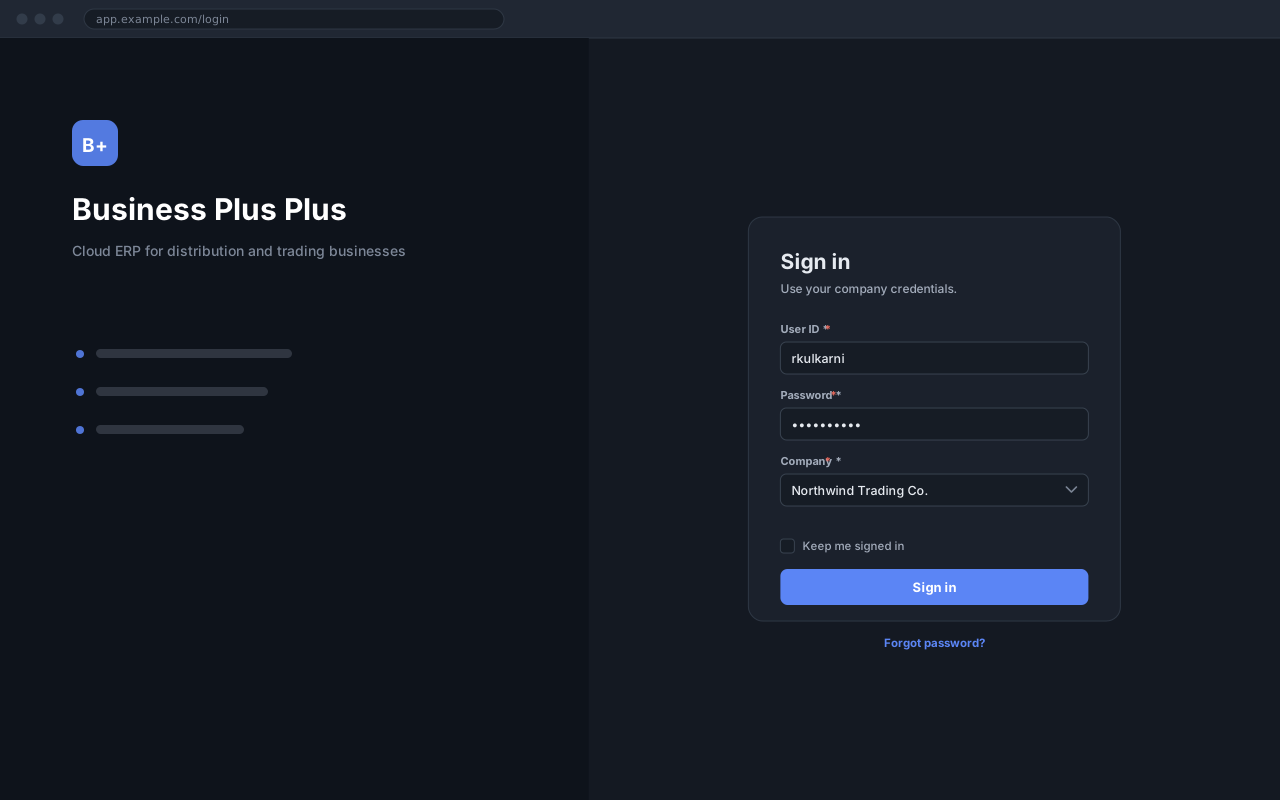
<Checklist id="component-demo" title="Trainee checklist" items={['Created a customer', 'Raised a sales order']}/>Every generated screenshot ships as a light/dark pair, swapped by CSS with no flash. Click one to enlarge it.
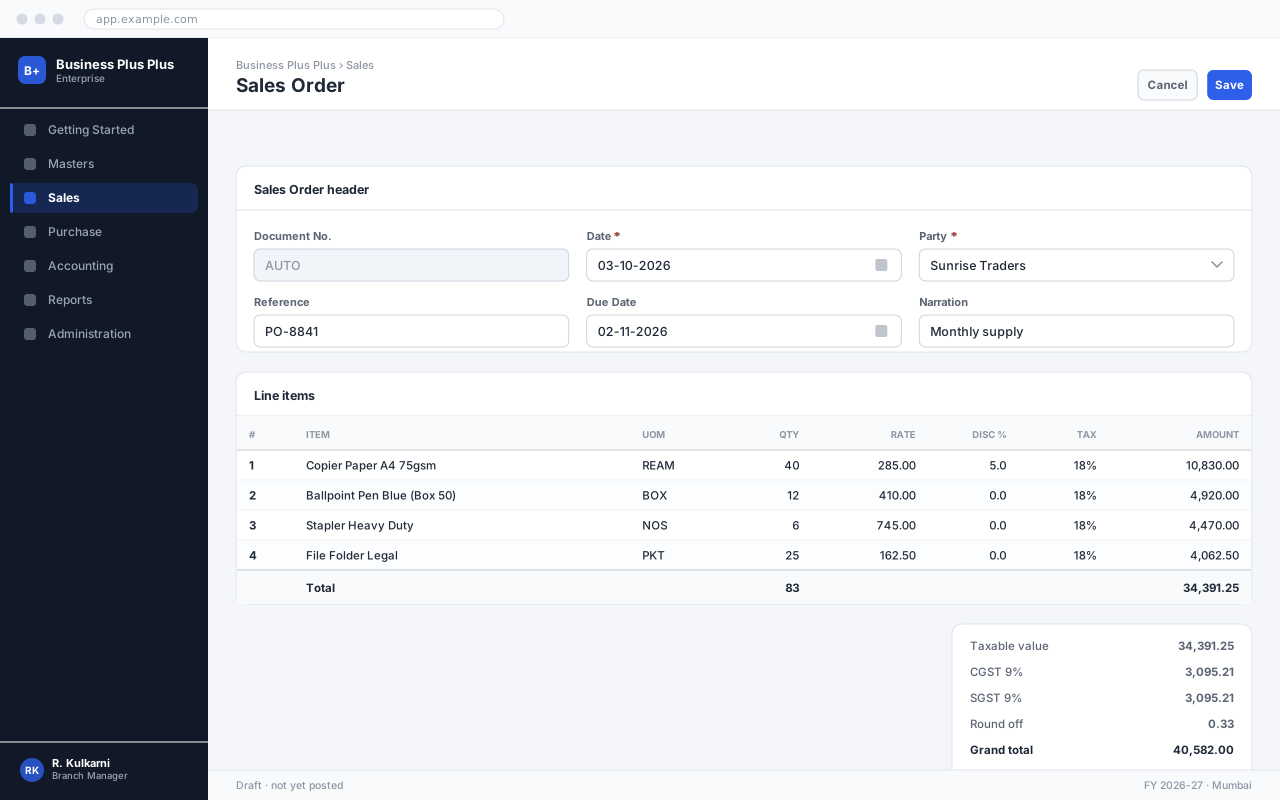
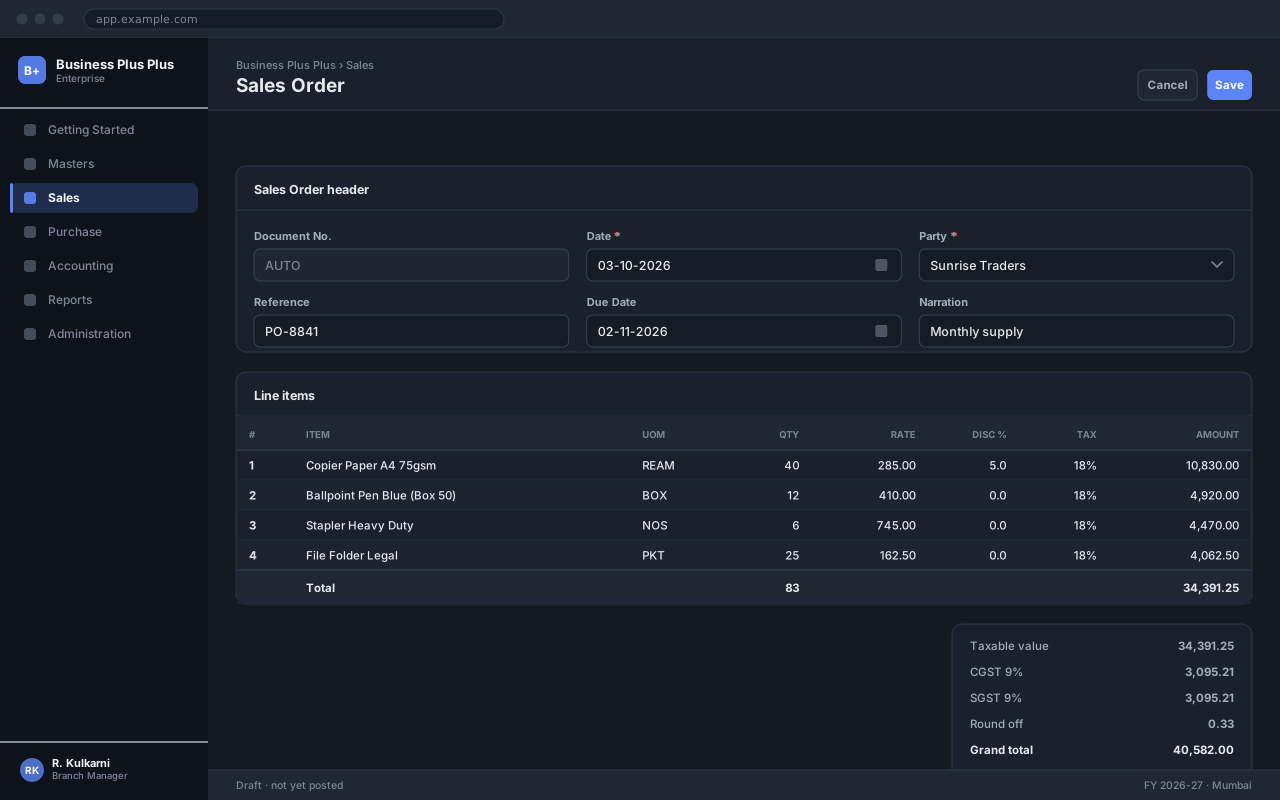

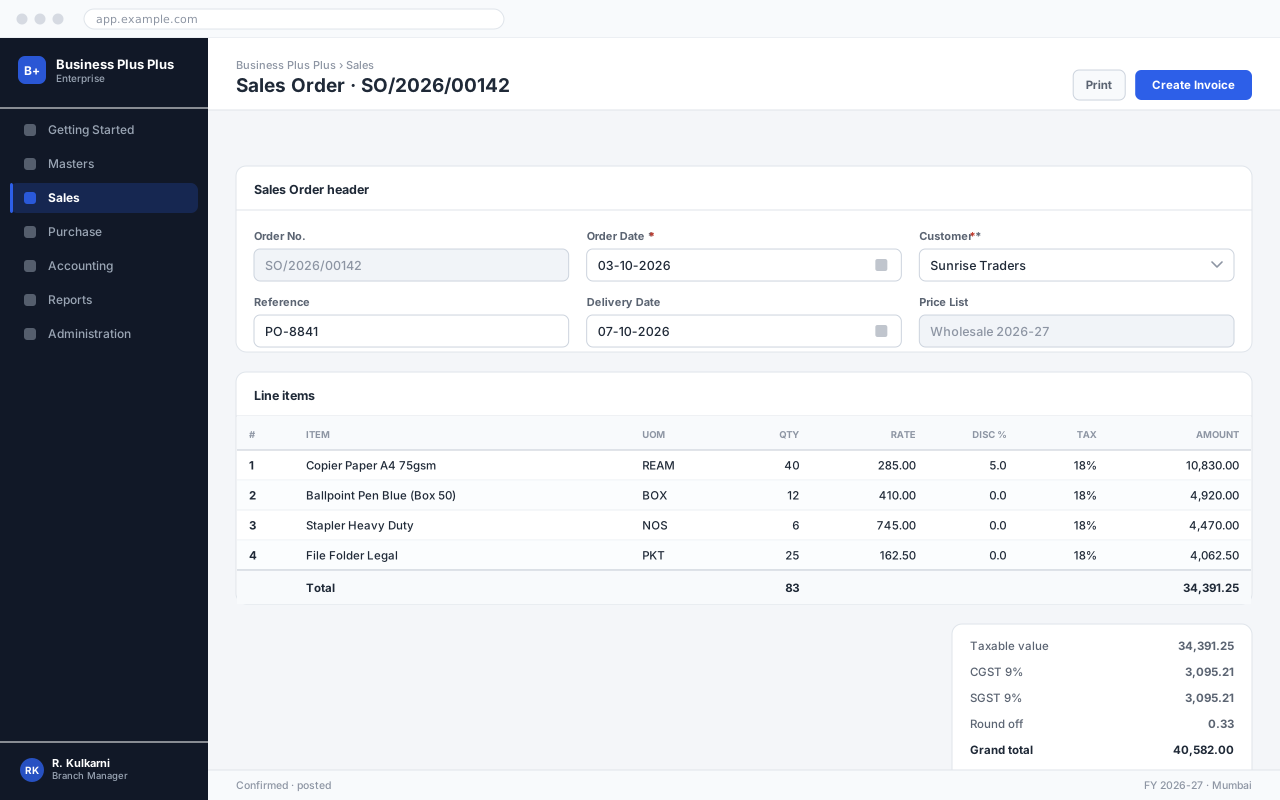
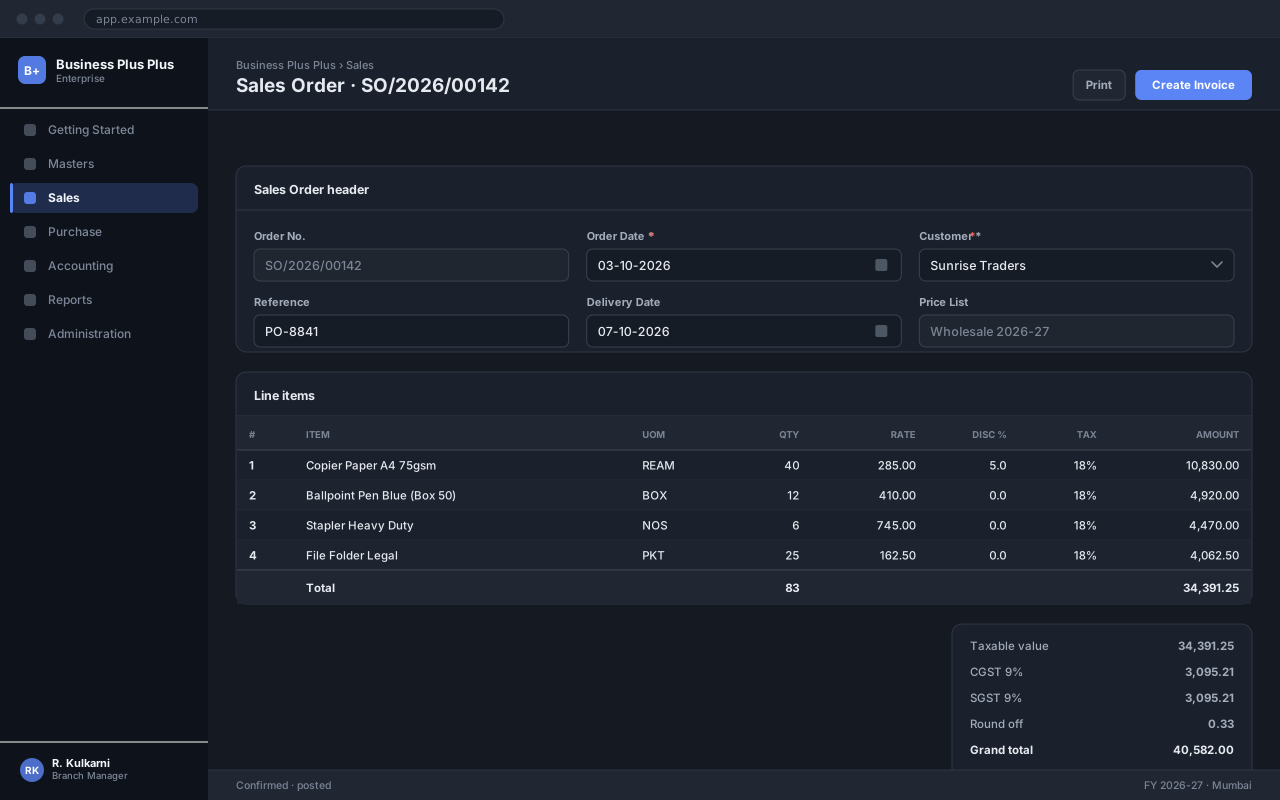
<Screenshot  src="/images/bpp/sales/sales-order.svg"  caption="The Sales Order screen."  alt="Sales Order entry screen showing header fields and a line item grid."/>
<Screenshot src="/images/bpp/sales/sales-order-customer.svg" size="md" alt="Customer lookup." /><Screenshot src="/images/bpp/real-capture.png" dual={false} alt="A real screenshot with no dark twin." />The order-to-cash cycle
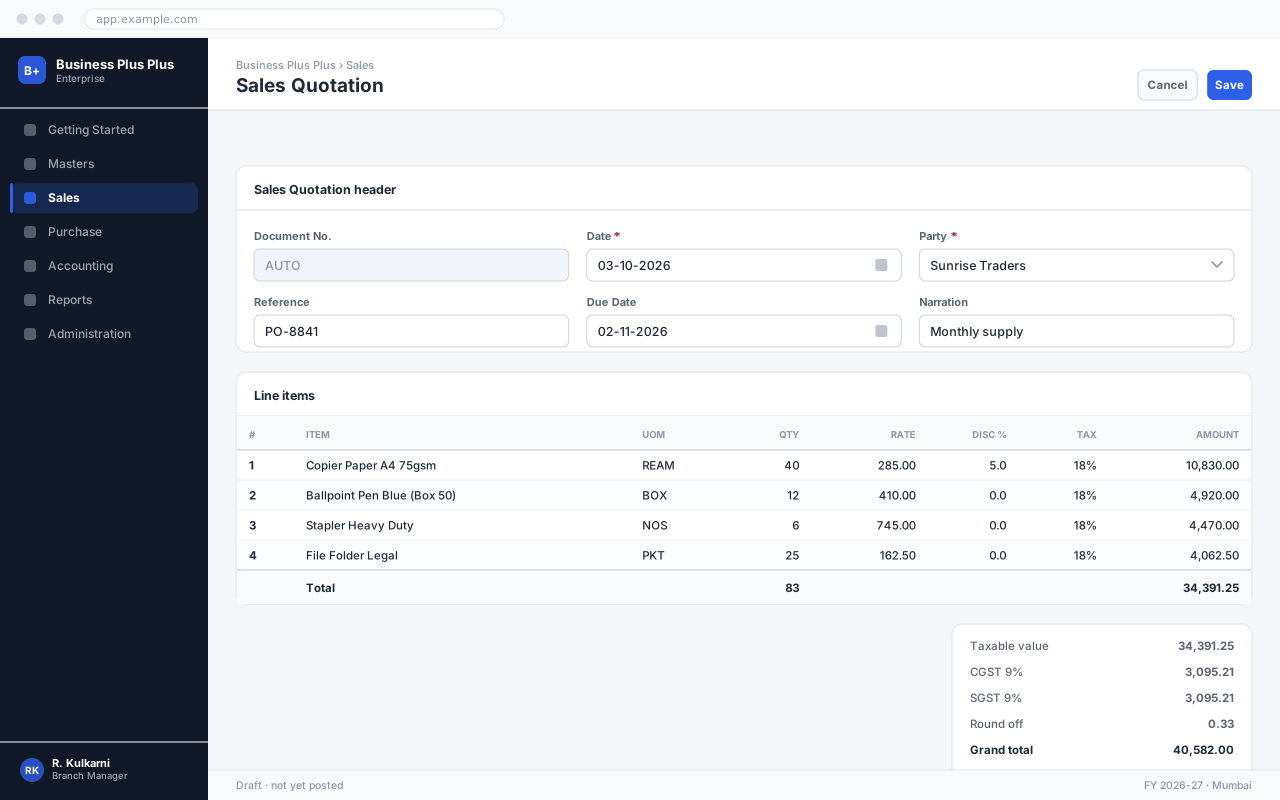
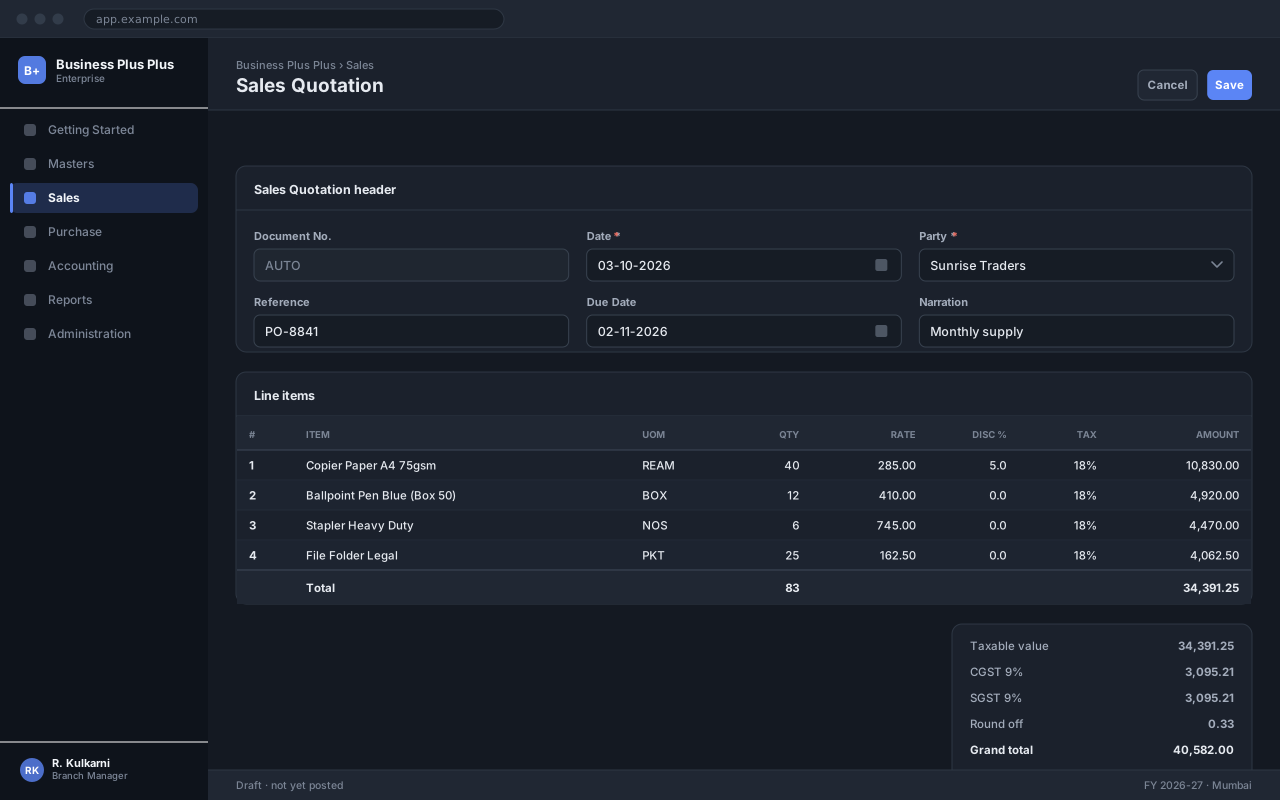

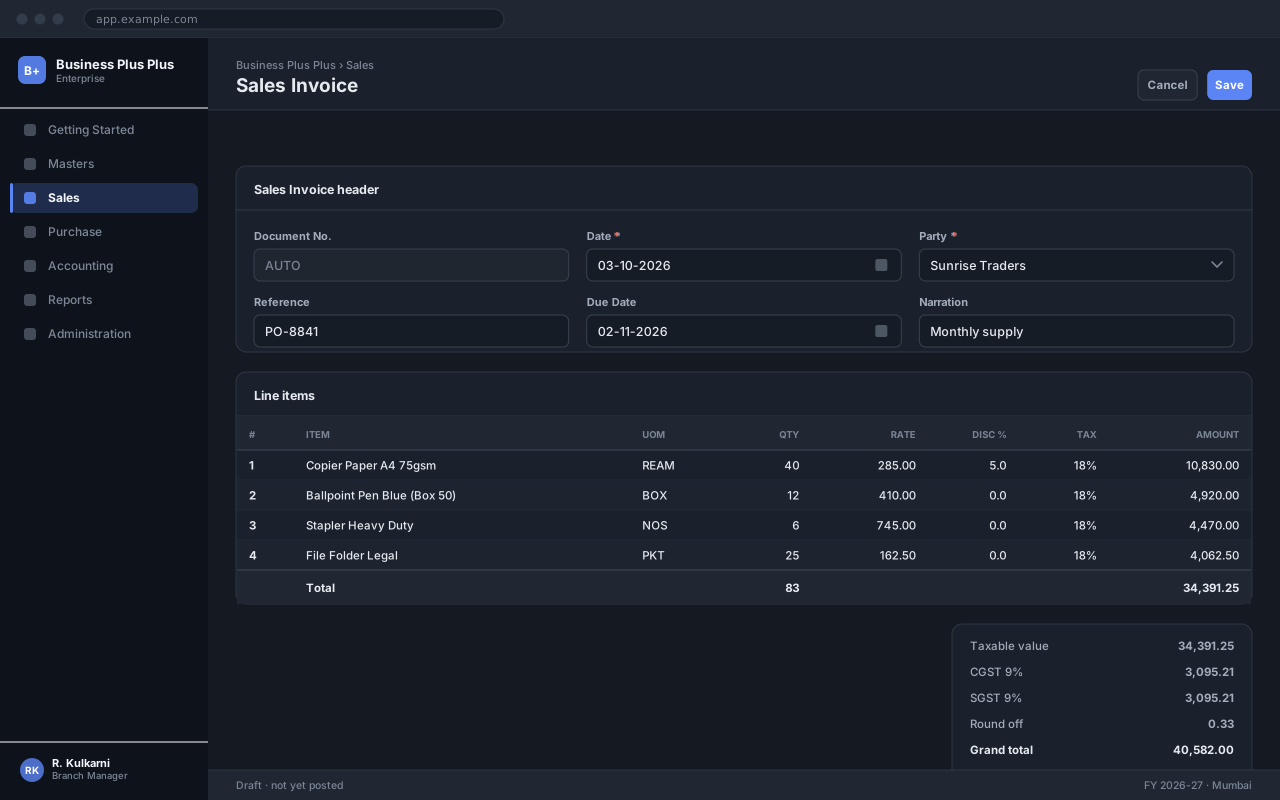
<ScreenshotGallery title="The order-to-cash cycle" columns={3} items={[ { src: '/images/bpp/sales/quotation.svg', caption: 'Quotation', alt: 'Quotation screen.' }, { src: '/images/bpp/sales/sales-order.svg', caption: 'Sales Order', alt: 'Order screen.' }, ]}/>The embed is only loaded when the reader clicks, so a page with three videos is not three times slower.
Creating a sales order end to end
Walks through the full procedure, including the credit limit override.
<TrainingVideo  title="Creating a sales order end to end"  provider="youtube"  id="dQw4w9WgXcQ"  duration="6:42"  poster="/images/bpp/sales/sales-order.svg"/>
<TrainingVideo title="Posting a receipt" src="/video/receipt.mp4" />Select the customer for this transaction.
The date the customer placed the order.
Allocated from the numbering series on save.
<Field name="Customer" type="Dropdown" required description="Select the customer for this transaction."/>The workhorse. Below 40rem it becomes a stacked card layout rather than scrolling sideways.
| Field | Type | Required | Default | Description | Notes |
|---|---|---|---|---|---|
| Order No. | Auto | Read-only | — | Allocated from the series on save. | Gap-free |
| Order Date | Date | Yes | Today | Date the order was received. | |
| Customer | Dropdown | Yes | — | Active customers only. | |
| Reference | Text | No | — | The customer's own PO number. |
Sales Order header fields
<FieldTable caption="Sales Order header fields" fields={[ { name: 'Order No.', type: 'Auto', readonly: true, description: 'Allocated on save.', notes: 'Gap-free' }, { name: 'Customer', type: 'Dropdown', required: true, description: 'Active customers only.' }, ]}/>| Step | Action | Who | Result |
|---|---|---|---|
| 1 | Create the sales order | Sales Executive | Status becomes Confirmed |
| 2 | Pick and dispatch | Store Keeper | Delivery note generated |
| 3 | Raise the invoice | Accounts Clerk | Receivable posted |
Order to cash
<ProcessTable rows={[ { action: 'Create the sales order', result: 'Status becomes Confirmed', role: 'Sales Executive' }, { action: 'Raise the invoice', result: 'Receivable posted', role: 'Accounts Clerk' }, ]}/>Row form, when the options differ along the same dimensions:
| Aspect | Sales Quotation | Sales Order |
|---|---|---|
| Commitment | None — a proposal | Confirmed by the customer |
| Reserves stock | No | Yes |
| Can be revised | Freely | Only before dispatch |
Column form, for loose pros and cons:
Cash sale
Credit sale
<Comparison  options={['Sales Quotation', 'Sales Order']}  rows={[{ label: 'Reserves stock', values: ['No', 'Yes'] }]}/>
<Comparison options={['Cash sale', 'Credit sale']}> <Fragment slot="option-1">- Payment collected immediately</Fragment> <Fragment slot="option-2">- Credit limit is checked</Fragment></Comparison>Press Ctrl+S to save, or Ctrl+Shift+Nfor a new order. Sequences render differently from chords: AltthenF.
Press <KeyboardShortcut keys="Ctrl + S" /> to save.<KeyboardShortcut keys="Alt then F" />
<Badge text="Confirmed" variant="success" /><Badge text="Beta" variant="tip" solid />Give related groups the same sync key and the reader’s choice is remembered across the page and across pages.
Press Ctrl+P to print.
Press Cmd+P to print.
Use Share → Print from the document menu.
<Tabs sync="platform"> <TabItem label="Windows">Press <KeyboardShortcut keys="Ctrl + P" /></TabItem> <TabItem label="macOS">Press <KeyboardShortcut keys="Cmd + P" /></TabItem></Tabs>Order states
It is released immediately and becomes available to other orders.
Only the delivery date, narration and reference. For anything else, cancel and re-raise.
Open the order and click Short Close. The undelivered balance is released and the order becomes Closed.
<Accordion title="Order states" single> <AccordionItem title="What happens to reserved stock?" meta="Stock"> It is released immediately. </AccordionItem></Accordion>Quick form, for plain-text answers:
Quick FAQ
No. Cancel it instead — deleting would break the audit trail.
The list shows active customers only.
Rich form, when an answer needs Markdown or a link:
Rich FAQ
Rates come from the price list, and overriding them needs the Override Pricing permission. See Price List.
Raise a delivery note with the quantity being dispatched. The order stays open for the balance.
<FAQ items={[{ question: 'Can I delete a sales order?', answer: 'No. Cancel it instead.' }]} />
<FAQ> <FAQItem question="Why can I not change the rate?"> See [Price List](/bpp/masters/price-list/). </FAQItem></FAQ>Links to another product are labelled automatically, so a cross-product reference is never mistaken for a page in the current manual.
<RelatedDocumentation items={[  { title: 'Customer Master', href: '/bpp/masters/customer/', description: 'Create the customer first.' },]} />
<RelatedDocumentation title="Customer Master" href="/bpp/masters/customer/" />Record a confirmed customer order from start to finish.
Create the receivable and post to the ledger.
Allocate a receipt against outstanding invoices.
<CardGrid cols={3}> <TrainingCard title="Creating a Sales Order" href="/bpp/sales/sales-order/" icon="cart" level="Beginner" time="12 min" description="Record a confirmed customer order." /></CardGrid>On a section overview page, <SectionIndex /> lists that section’s pages straight from the navigation config — so an overview can never fall out of step with the sidebar.
Example: the BPP Accounting section
<SectionIndex /><SectionIndex section="bpp/getting-started" title="Start here" cols={3} numbered />Cloud ERP for distribution and trading businesses
Business Plus Plus is a cloud ERP covering masters, sales, purchase and accounting for distribution and trading businesses. This manual covers day-to-day operation, administration and end-user training.
Microfinance, loans and deposit management
FinGrow manages members, loan portfolios, deposit schemes and field collections for microfinance institutions and co-operative societies. This manual covers branch operations, agent workflows and statutory reporting.
Agri-market vendor, order and delivery platform
SuperMandi runs agricultural market operations: vendor onboarding, produce catalogues, procurement, order fulfilment and last-mile delivery. This manual covers back-office, warehouse and delivery-partner workflows.
Configurable business workflow application
Project Four is a configurable business application built around transactions, approvals and reporting. It also serves as the reference template for onboarding a new product into this documentation portal.
<ProjectGrid /><EmptyState icon="cart" title="No sales orders yet" description="Orders appear here once you create the first one." action="Create a sales order" href="/bpp/sales/sales-order/"/>For small pieces of real UI, where live markup beats a screenshot: it stays crisp at any zoom, works in both themes and prints properly.
<UiExample label="Validation state" layout="stack" caption="A field in error."> <Badge text="Credit limit exceeded" variant="danger" /></UiExample>Plain Markdown tables are styled to match the components and wrapped in a scroll container, so a wide table stays usable on a phone.
| Field | Type | Required | Description |
|---|---|---|---|
Customer |
Dropdown | Yes | The customer placing the order |
Order Date |
Date | Yes | Drives price list selection |
Reference |
Text | No | The customer’s own PO number |
Delivery Date |
Date | No | Drives the dispatch worklist |
Code blocks get syntax highlighting, a copy button, optional titles and line highlighting.
// The most specific price list wins: customer, then group, then company.function resolveRate({ customer, product, onDate }) {  const lists = priceLists    .filter((list) => list.status === 'Active')    .filter((list) => covers(list, onDate))    .filter((list) => appliesTo(list, customer));
const bySpecificity = lists.sort((a, b) => scope(b) - scope(a)); return bySpecificity[0]?.rates[product.code] ?? 0; // zero means "no price found"}{ "orderNo": "SO/2026/00142", "orderDate": "2026-10-03", "customer": { "code": "CUS/00318", "name": "Sunrise Traders" }, "status": "Confirmed", "lines": [ { "product": "PRD/00412", "qty": 40, "uom": "REAM", "rate": 285.0, "discountPct": 5 } ], "grandTotal": 40582.0}SELECT so.order_no, c.name AS customer, so.order_date, so.delivery_date, so.grand_totalFROM sales_order soJOIN customer c ON c.id = so.customer_idWHERE so.status = 'CONFIRMED' AND so.delivery_date < CURRENT_DATEORDER BY so.delivery_date;npm installnpm run build # also builds the Pagefind search indexnpm run preview # search only works against a built site