Agent Assignment
Agent Assignment holds the reference data that transactions depend on. Getting it right once saves correcting every document that uses it.
Overview
Section titled “Overview”A agent Assignment record is created once and referenced from then on. Because transactions copy their defaults from it, a change here changes the behaviour of every future document — but never a document already posted.
Prerequisites
Section titled “Prerequisites”Before you begin
- You have the Create permission for Agent Assignment
- The classification groups you need already exist
Opening the screen
Section titled “Opening the screen”- Agents
- Agent Assignment
Creating an agent Assignment
Section titled “Creating an agent Assignment”Open the Agent Assignment list
The list shows every agent Assignment record you have access to, newest first. Use the search box to check whether the record already exists before creating a duplicate.
Start a new record
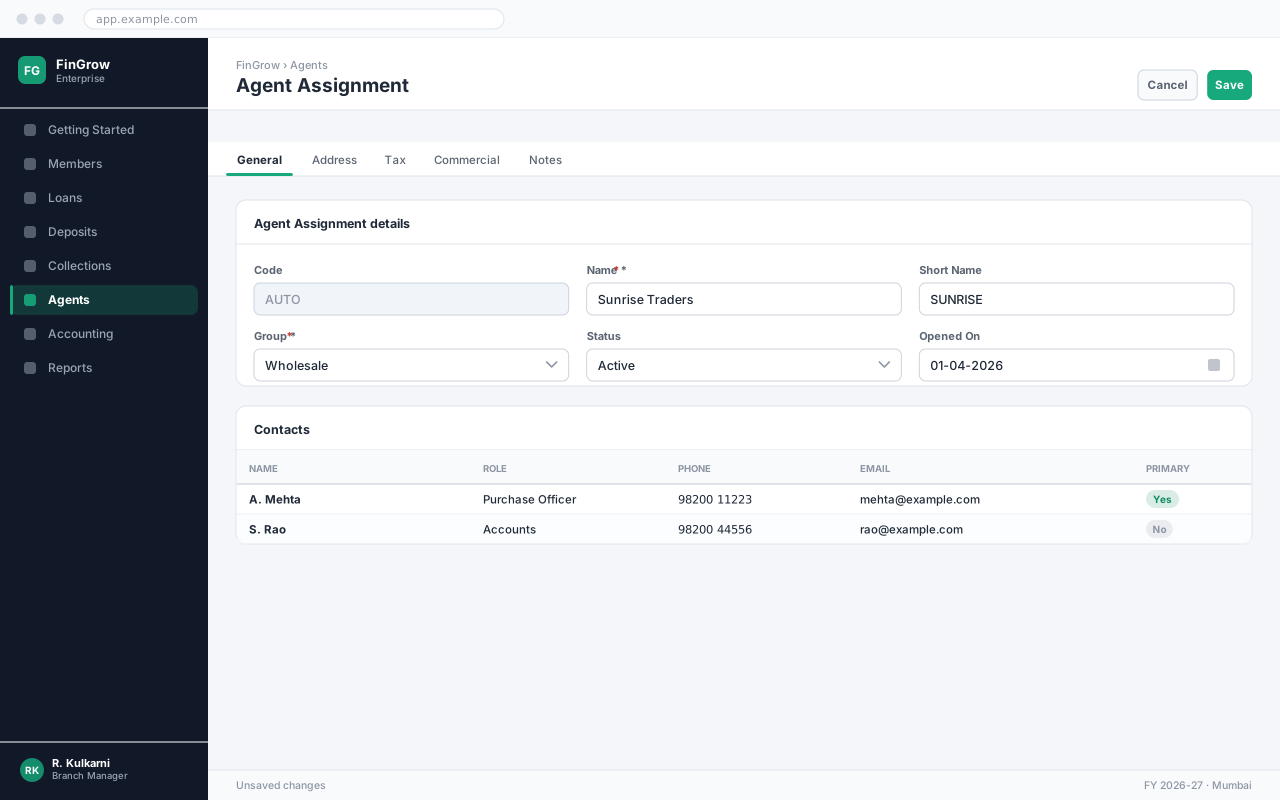
Click New. Agent Assignment opens with the code field already filled from the numbering series.
Complete the required fields
Fill every field marked with a red asterisk. The Save button stays disabled until all of them are valid.
Save the record
Click Save. The record becomes available to transactions immediately — there is no separate approval step.
Expected result
The record is saved, a code is allocated, and the agent Assignment immediately appears in transaction lookups.
Field reference
Section titled “Field reference”| Field | Type | Required | Default | Description | Notes |
|---|---|---|---|---|---|
| Code | Auto | Read-only | — | System-generated identifier for the agent Assignment record. | Series is configured in Company Settings. |
| Name | Text | Yes | — | Full name of the agent Assignment as it should appear on documents. | Must be unique. 120 characters. |
| Short Name | Text | No | — | Abbreviation used in lists, lookups and narrow reports. | |
| Group | Dropdown | Yes | — | Classification used for reporting and default posting rules. | |
| Status | Dropdown | No | Active | Only Active records appear in transaction lookups. | Set to Inactive instead of deleting. |
| Remarks | Text area | No | — | Internal notes. Not printed on documents. |
Agent Assignment fields
Important notes
Section titled “Important notes”Common problems
Section titled “Common problems”The Save button is disabled
A required field is empty or invalid. Fields in error are outlined in red with the reason underneath — scroll up, the first error is usually in the header.
You do not have permission to perform this action
Your role is missing the relevant permission for this screen. Ask an administrator to check it against Roles & Permissions.
Frequently asked questions
Section titled “Frequently asked questions”Can I delete an agent Assignment record?
Not once it has been used on a transaction — deleting it would break the audit trail and every document that refers to it. Set Status to Inactive instead, which hides it from new transactions while keeping history intact.
Why does a agent Assignment not appear in the lookup?
Lookups list active records only. Open the record and check that Status is Active, and that its group is one your role is allowed to use.
Can two records share a name?
No. Names must be unique so that reports and lookups are unambiguous. Add a distinguishing suffix, such as a city or branch, if you genuinely have two similar records.