Loan Disbursement
Disbursement releases the money and generates the repayment schedule. It is the point at which the loan becomes a real asset of the society.
Overview
Section titled “Overview”This page covers raising a loan Disbursement from scratch. A loan Disbursement moves through Draft (editable, no accounting effect) and Confirmed (posted, locked), and can be Cancelled — which reverses the posting and keeps the audit trail.
Prerequisites
Section titled “Prerequisites”Before you begin
- The party exists and is active
- The items you need exist with a unit of measure
- The financial period you are posting into is open
Opening the screen
Section titled “Opening the screen”- Loans
- Transactions
- Disbursement

Procedure
Section titled “Procedure”Open Disbursement
Go to Loans → Transactions → Disbursement and select the sanctioned loan.
Confirm the sanction terms
Check the sanctioned amount, rate and tenure against the sanction letter. The terms are displayed read-only; anything that needs changing has to go back to sanction.
Enter the deductions
Processing fee, insurance and any first-instalment advance are deducted from the disbursed amount. The net payable is shown prominently — that is what the member receives.
Choose the disbursement mode
Cash, bank transfer or credit to the member’s deposit account. For a transfer, confirm the bank details against the member record.
Generate and review the schedule
Click Generate Schedule. Check the instalment amount, the number of instalments and the first due date before saving.
Disburse
Click Disburse. The loan account opens, the schedule is fixed, and the member’s repayment obligation starts.
Expected result
The loan account is created with a number such as LN/0017432, the schedule is visible on the member ledger, and the first instalment appears on the agent’s collection sheet from its due date.
Field reference
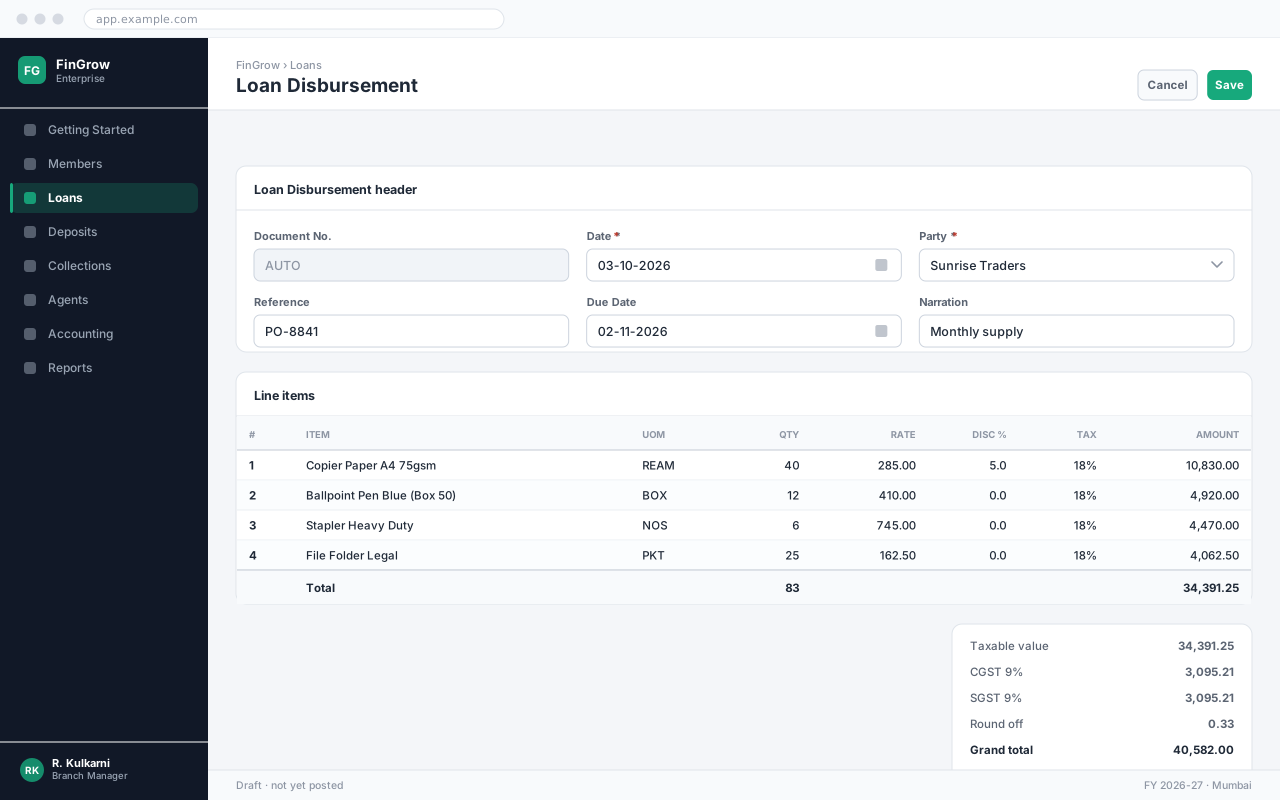
Section titled “Field reference”| Field | Type | Required | Default | Description | Notes |
|---|---|---|---|---|---|
| Document No. | Auto | Read-only | — | Number allocated from the Loan Disbursement series when the record is saved. | Gaps are not permitted; cancel rather than delete. |
| Date | Date | Yes | Today | Effective date of the transaction. | Must fall inside an open financial period. |
| Party | Dropdown | Yes | — | The account this transaction is raised against. | Only active parties are listed. |
| Reference | Text | No | — | The other party's document number, for reconciliation. | |
| Narration | Text area | No | — | Explanation carried through to the ledger and the printed document. |
Loan Disbursement fields
Important notes
Section titled “Important notes”Common problems
Section titled “Common problems”The Save button is disabled
A required field is empty or invalid. Fields in error are outlined in red with the reason underneath — scroll up, the first error is usually in the header.
You do not have permission to perform this action
Your role is missing the relevant permission for this screen. Ask an administrator to check it against Roles & Permissions.
The period is closed
The date falls in a financial period that has been closed. Either use a date in an open period, or ask an administrator to reopen it — which affects everyone, so it is rarely the right answer.
The rate comes in as zero
No price is configured for that combination of party and item on this date. Check the applicable price list, and whether its validity window covers the document date.
Frequently asked questions
Section titled “Frequently asked questions”Can I edit a loan Disbursement after saving?
While it is still in Draft, yes — every field is editable. After confirmation only non-financial fields such as Narration can be changed; anything else requires cancelling and re-raising the document.
Why is the document number not sequential?
Numbers are allocated when a document is saved, so a cancelled document leaves its number used. That is intentional: a gap-free series is what makes the audit trail defensible.
Can I change the date after confirming?
No. The date determines which period the entry posts into, so changing it would move an already-posted entry between periods. Cancel and re-raise with the correct date.