Customer Master
यह सामग्री अभी हिन्दी में उपलब्ध नहीं है।
The Customer Master holds everything the application needs to raise a document for a customer: who they are, how they are taxed, what they may owe at any one time and which prices apply to them.
Overview
Section titled “Overview”Every sales document starts by selecting a customer, and almost every default on that document — price list, tax treatment, payment terms, credit limit — is copied from this record. That makes the Customer Master the highest-leverage screen in the Sales module: time spent getting a customer right is time not spent correcting invoices.
Changing a customer affects future documents only. Documents already posted keep the values that applied when they were raised, which is what lets you reprint an old invoice and get the original figures back.
Prerequisites
Section titled “Prerequisites”Before you begin
- You have the Create permission for Customer Master
- The customer group you need exists (Masters → Parties → Customer Group)
- At least one price list is configured, if you sell at list prices
- The tax registration details have been supplied by the customer in writing
Opening the screen
Section titled “Opening the screen”- Masters
- Parties
- Customer
Creating a customer
Section titled “Creating a customer”Search before you create
Open Masters → Parties → Customer and search for the customer by name, phone number or tax registration. Duplicate customers split a single account across two ledgers, and merging them afterwards is a manual job.
Create the record
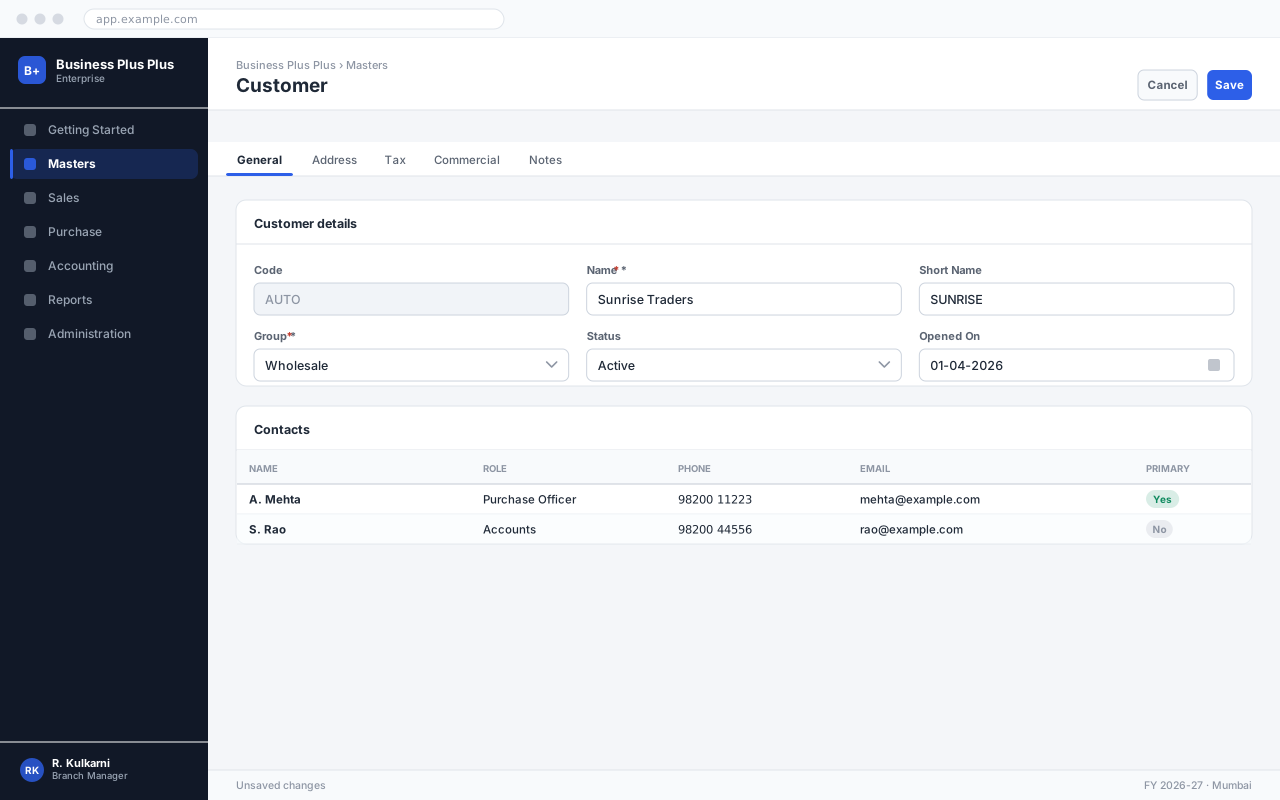
Click New. The Code field shows AUTO and is filled from the Customer numbering series when you save.
Enter the identity details
Complete the General tab. The name you enter here is the name printed on invoices, so use the customer’s registered legal name rather than a trading shorthand.
Registered legal name of the customer, printed on every document.
- Limit
- 120 characters
- Validation
- Must be unique across active customers.
Add the addresses
On the Address tab, enter the billing address, then add shipping addresses as separate rows. A customer can have any number of shipping addresses; one must be marked default.
Set the tax details
On the Tax tab, enter the registration number and select the tax category. The application validates the registration format and warns if the state in the number does not match the billing address state.
Set the commercial terms
On the Commercial tab, set the price list, payment terms and credit limit. These become the defaults on every sales document for this customer.
Save
Click Save. The code is allocated and the customer becomes selectable in sales documents immediately.
अपेक्षित परिणाम
The customer is saved with a code such as CUS/00318, and appears in the Customer lookup on the Sales Order, Sales Invoice and Receipt screens.
Field reference
Section titled “Field reference”| Field | Type | Required | Default | Description | Notes |
|---|---|---|---|---|---|
| Code | Auto | Read-only | — | Allocated from the Customer numbering series on save. | Series configured in Company Settings → Numbering. |
| Name | Text | Yes | — | Registered legal name, printed on all documents. | Unique. 120 characters. |
| Short Name | Text | No | — | Abbreviation shown in lookups and narrow report columns. | Defaults to the first 12 characters of Name. |
| Customer Group | Dropdown | Yes | — | Classification driving default ledger posting and report grouping. | Cannot be changed once transactions exist. |
| Billing Address | Address | Yes | — | Registered address. Sets the place of supply for tax. | |
| Shipping Addresses | Grid | No | — | Any number of delivery addresses; exactly one is the default. | |
| Tax Registration No. | Text | No | — | Validated for format. Required for registered customers. | Leave blank for unregistered customers and set Tax Category to Unregistered. |
| Tax Category | Dropdown | Yes | Registered | Determines which tax rates apply and which fields are mandatory. | |
| Price List | Dropdown | No | — | Default price list for this customer. | Falls back to the company default price list if blank. |
| Payment Terms | Dropdown | No | Net 30 | Sets the due date on invoices raised for this customer. | |
| Credit Limit | Amount | No | 0 | Maximum outstanding balance permitted. | Zero means unlimited. Use 1 for "no credit". |
| Credit Check | Dropdown | No | Warn | What happens when the limit is exceeded: Ignore, Warn or Block. | |
| Status | Dropdown | No | Active | Inactive customers cannot be selected on new documents. |
Customer fields
Important notes
Section titled “Important notes”Common problems
Section titled “Common problems”Tax registration number is rejected
The format check is strict. Confirm the number against the customer’s registration certificate rather than an email signature, and check for a transposed character. If the number is genuinely valid and still rejected, an administrator can disable format validation per tax category.
The state in the registration does not match the billing address
This is a warning, not an error, because it is occasionally legitimate. But nine times out of ten it means the wrong state was selected on the address. Fix the address before saving — it determines the tax split on every invoice.
Credit limit has no effect
Check Credit Check on the Commercial tab. With the default of Warn, the user can override the limit; set it to Block to prevent the save outright.
The customer does not appear in the Sales Order lookup
Confirm Status is Active, and that the customer group is one your role is permitted to transact with. Group restrictions are set in Roles & Permissions.
Frequently asked questions
Section titled “Frequently asked questions”Can I change a customer name after invoices have been raised?
Yes. The new name applies to documents raised from then on; already-printed invoices keep the name they were raised with, which is what you want for an audit.
How do I handle a customer who is also a supplier?
Create both records, then link them on the Commercial tab. Linking lets you offset the balances on a single contra voucher instead of paying and collecting separately.
What is the difference between inactive and blocked?
Inactive removes the customer from all lookups — you cannot post anything, including receipts. Blocked stops new sales but still allows receipts and credit notes. For a customer who owes you money, blocked is almost always the right choice.
Can two customers share a tax registration number?
The application warns but allows it, because a single registered entity can legitimately have several billing branches. If they are genuinely the same entity, prefer one customer with several shipping addresses.